CPSC/DTSC 115L: Introduction to Computer Science Fall 2026

Laboratory 1: Java programming on GNU/Linux

Wednesday, September 9
Thursday, September 10

Throughout this term, in the P/LP/F laboratories, you are expected to work with an assigned partner as a pair (except, in case there are an odd number of students, you will be asked to work alone every once in a while). Both you and your partner will receive the same grade. Both of you should always save your laboratory work on your own accounts.

Objectives

The main objectives of this laboratory are
  1. to familiarize yourself with the GNU/Linux operating system, and
  2. to learn how to write, compile and run simple Java programs in the GNU/Linux environment.

1. GNU/Linux operating system

Introduction. In this course, we will be using the GNU/Linux operating system. It is a free and open-source operating system published under the GNU General Public License (GPL). Free and open source mean that, unlike macOS and Windows, anyone is free to use, modify and distribute any of the actual source code. GNU/Linux is touted for its speed, minimal hardware requirements, security and remote administration. It is a fully-featured operating system available for “free”—free of charge. Because of GNU/Linux's speed and stability, it has increasing become the operating system of choice for many advanced users and permeates the entire web market.

Ubuntu. There are a number of different distributions of GNU/Linux available. For its elegant design and robustness, the Trinity College Computer Science Department has chosen the Ubuntu distribution (which is based on the popular Debian distribution of GNU/Linux). Ubuntu is currently the most popular Linux distribution and widely-regarded as the best alternative to macOS and Windows.

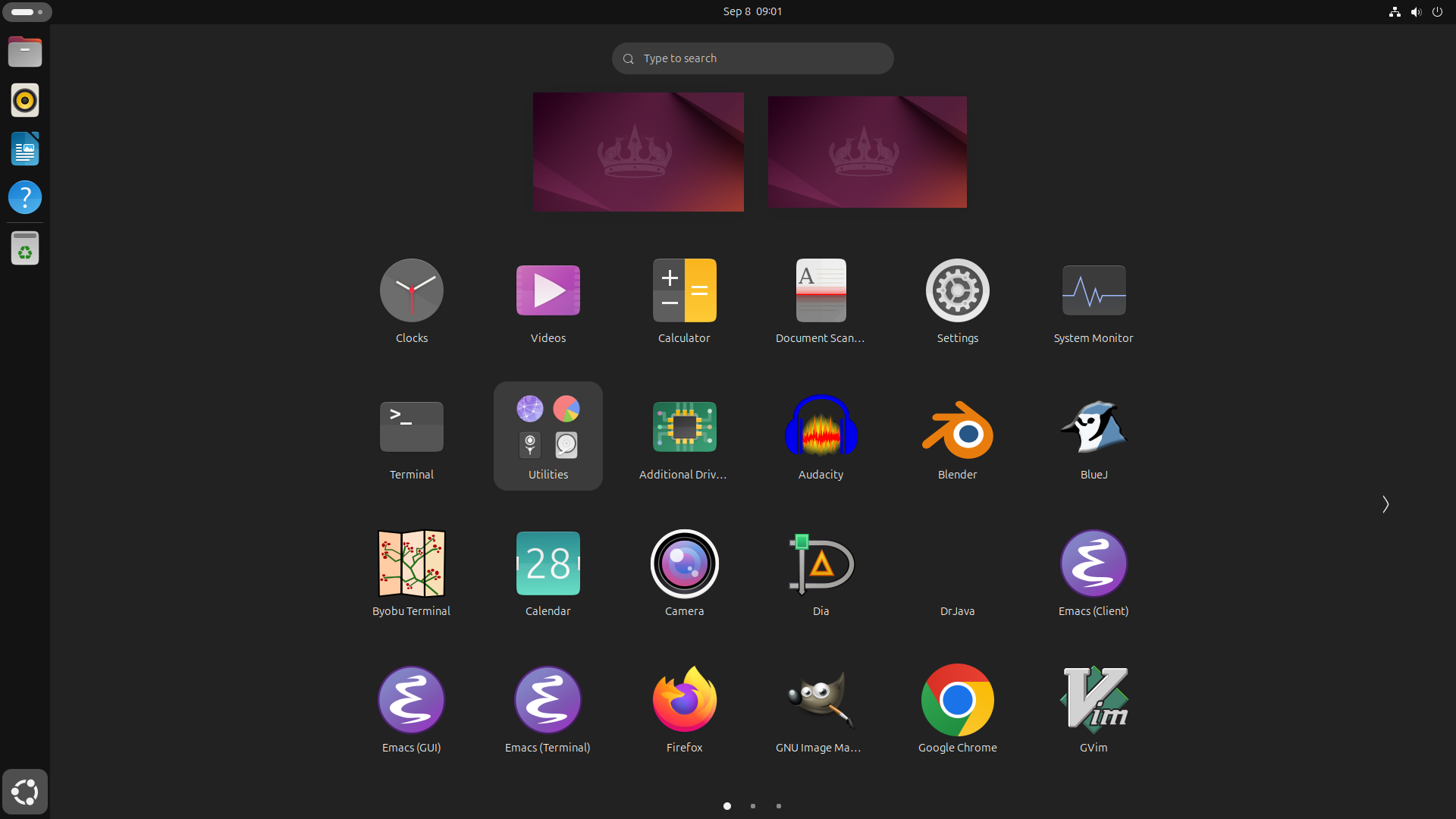
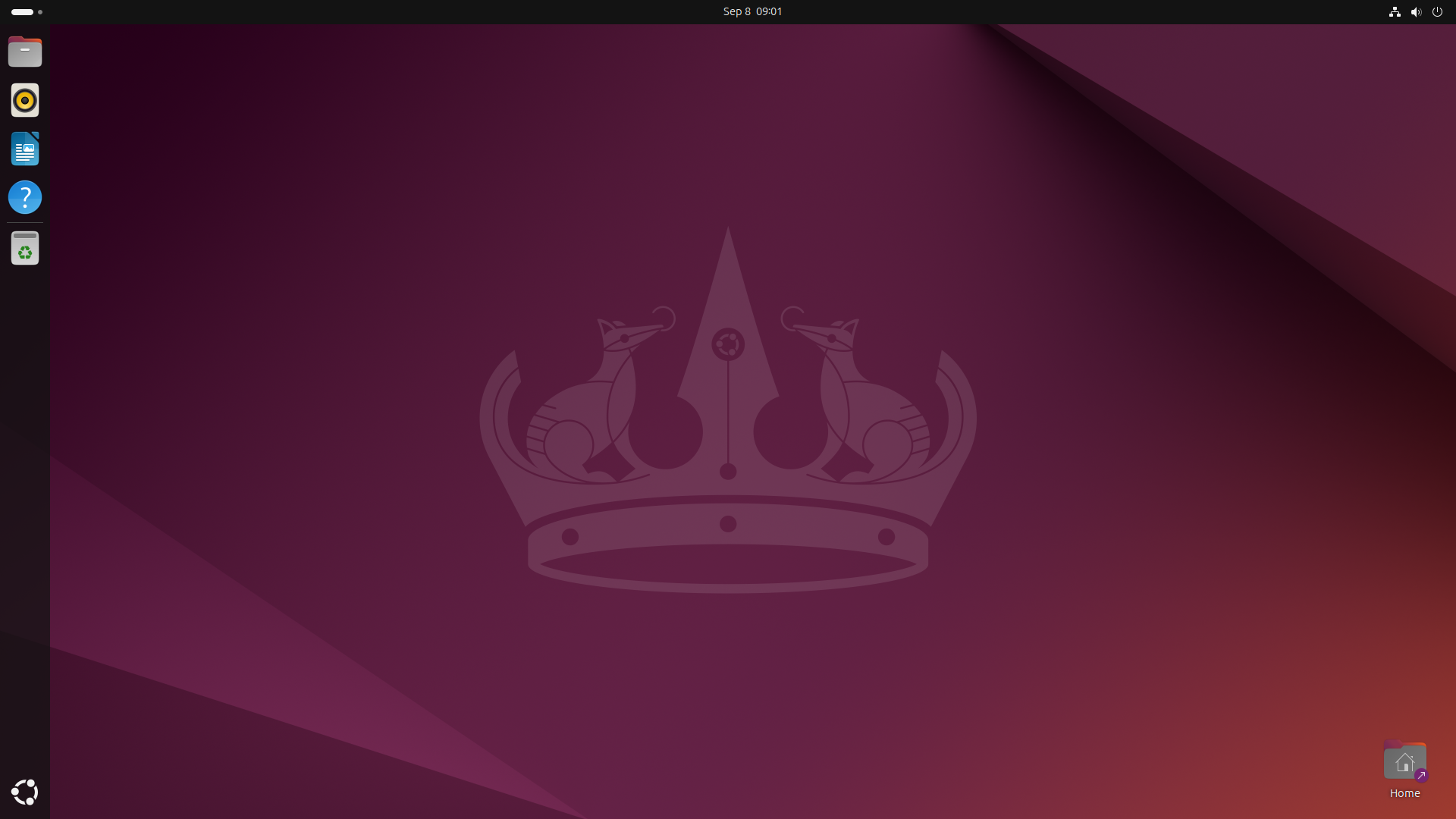
Logging in. To use GNU/Linux, you must first identify yourself to the system. This is done so that the system knows who you are, what permissions you have, and what your preferences are. To identify who you are, you will use your usual Trinity username and password. Enter your username and password. You should then see the following Ubuntu 24.04 LTS (Noble Numbat) desktop:

*


This is a free and open-source desktop environment for GNU/Linux, similar to the desktop environments found under macOS and Windows. The main desktop components are the menus and launcher located at the top and left ends of the screen, respectively. The launcher gives you quick access to popular applications. The very bottom item of the launcher is the Ubuntu button, which launches Dash, a useful launchpad to search and open applications and files. Most basic tasks can be performed from Dash:

*


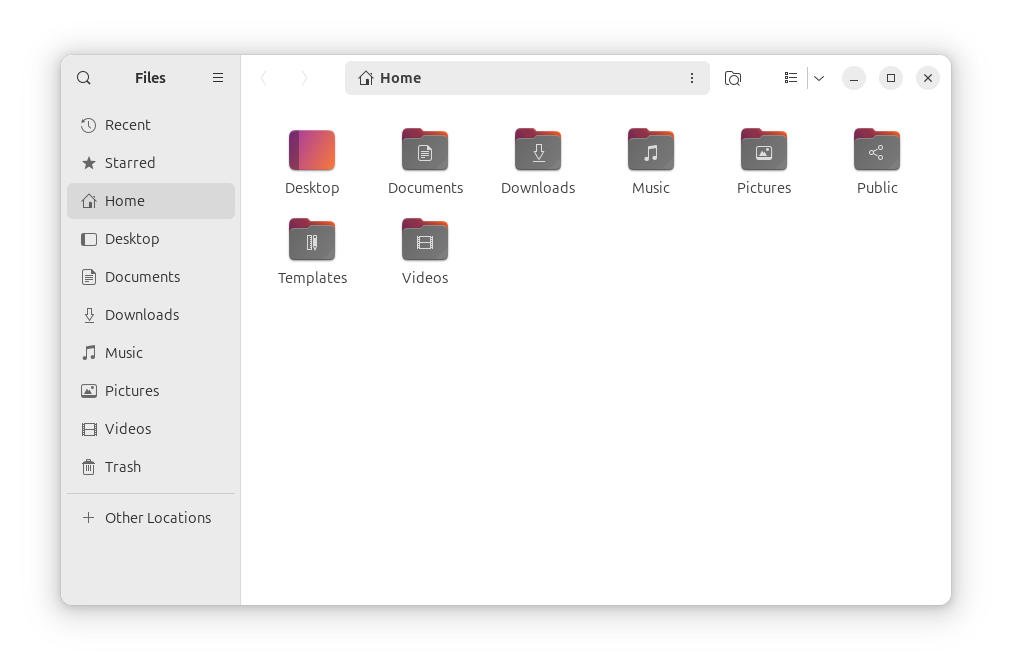
Creating a cpsc115 directory. You will now create a directory (i.e., folder) to keep all of your course-related files. First, click the file-cabinet button, located at the very top of the launcher. You should then see the following File Browser window:
*
Now, right-click anywhere inside the window and select New Folder. Name the new folder cpsc115, all in the lowercase without any space (in general, files and directories should be named all in the lowercase without any space). You should save all course-related files in this directory. Remember how to find this directory because you are going to need it every week.

File and directory permissions. In GNU/Linux, file and directory access permissions are defined separately for the following three categories of users:
  1. Owner—refers to the owner of a file (resp. directory).
  2. Group—refers to the group of users to which a file (resp. directory) belongs; by default, the owner is the only member of the group.
  3. Others—refers to all users of the system.
For files, each user category is given one of the following three types of permissions: None, Read-only and Read and write. For directories, each user category is given one of the following four types of permissions: None, List files only, Access files and Create and delete files. To see permission information of a file (resp. directory), all you need to do is to right-click the file (resp. folder) and select Properties and then Permissions.

Protecting your files and directories. Your account's file space resides in the Computer Science Department's central server, which in turn is accessible from anywhere in the world through the Internet, so it is very important to actively protect your personal file space. Now, make sure that the access permission of your cpsc115 directory is set as follows so that only you have an access to it.
  1. Right-click the cpsc115 folder.
  2. Select Properties and then Permissions.
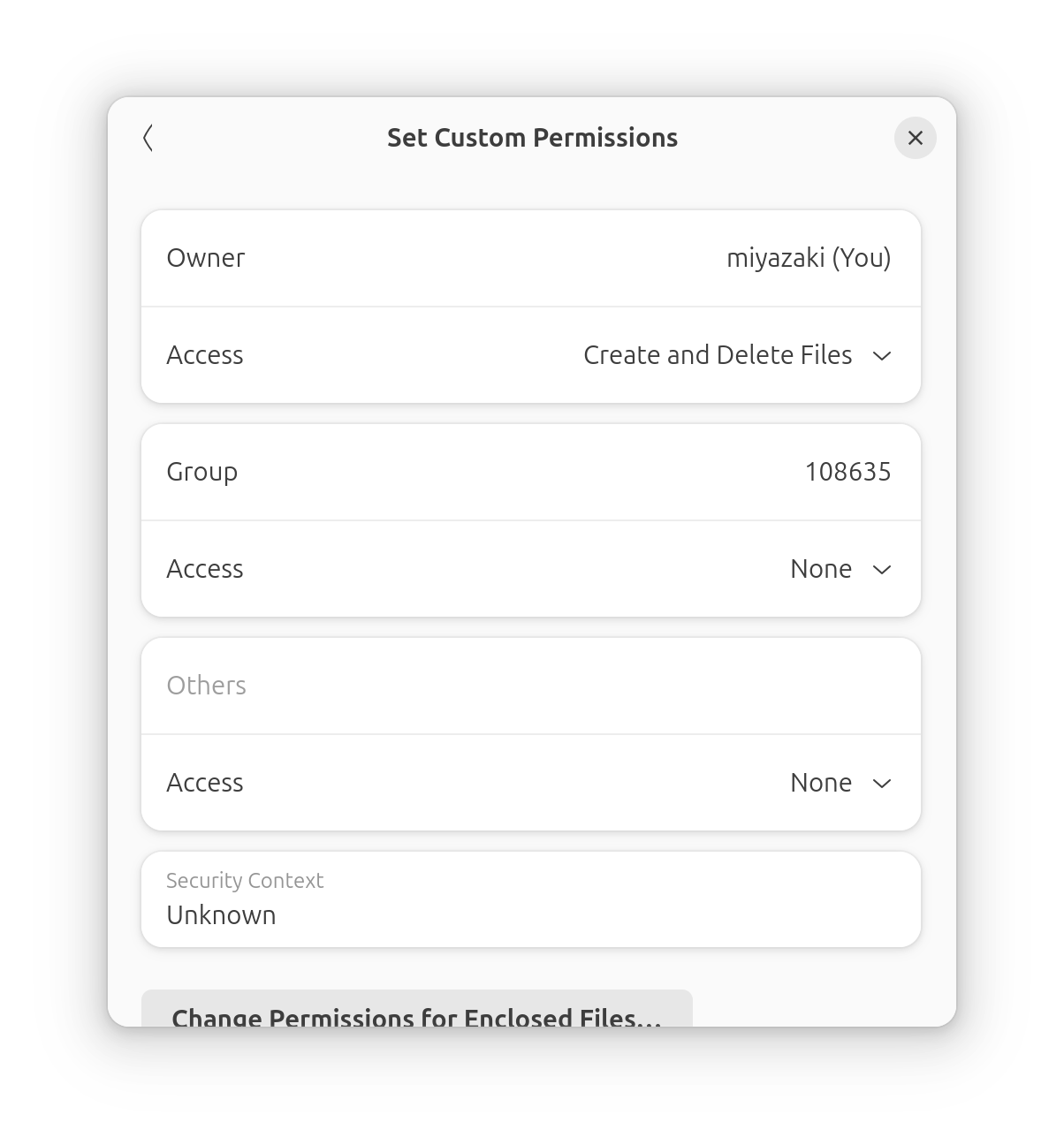
  3. Owner's folder access should be set as Create and delete files. Group and Others' folder accessses should be set as None. That is, these permissions should look like:
    *
Throughout the term, you should maintain the access permission of the cpsc115 directory as above so that no one besides you can access your files. When sharing laboratory work with your partner, send program files as e-mail attachments.

2. Developing Java programs on GNU/Linux

In this course, to learn how to program, we will be using Java Platform, Standard Edition (Java SE) 21 in the form of Open Java Development Kit (OpenJDK) and an associated Java Runtime Environment (JRE). The OpenJDK is text-based, i.e., you have to type in commands to edit, compile and execute your programs. We will now walk through the three basic steps of the software development cycle in Java. To begin, using File Browser, inside your cpsc115 folder, create a subfolder named lab1 (in general, at the beginning of each laboratory, you should create a unique subfolder for it).

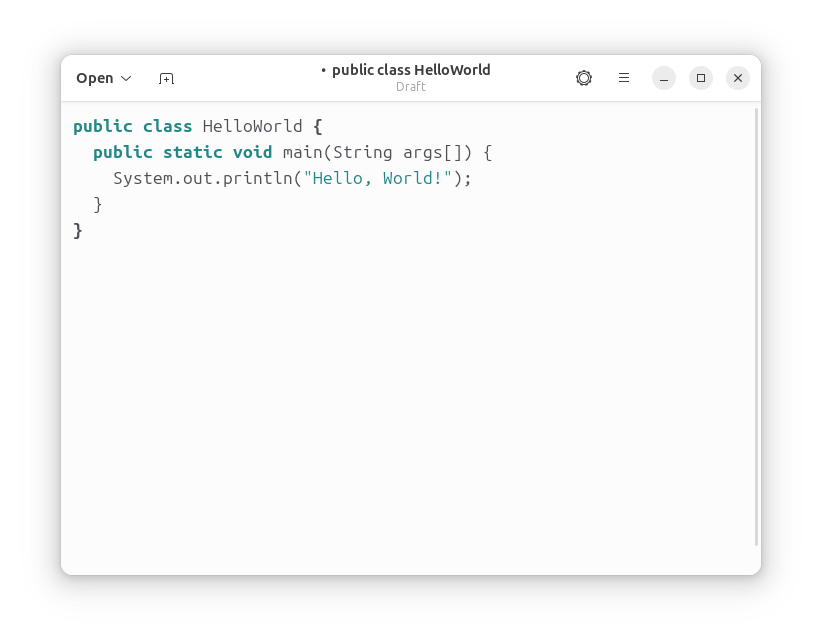
Editing, compiling and running. We will need a text editor for editing and a terminal for compiling and running. For a text editor, for now, we will use Ubuntu's Text Editor, which may be launched from Dash by searching for “Text Editor”. In Text Editor, set the document type as “Java” and manually type in the following code:
*
Save the file as HelloWorld.java in the lab1 subdirectory. Now, to compile and execute this program, open a terminal by selecting “Terminal” from Dash. To move the terminal prompt to the lab1 subdirectory within the cpsc115 directory, we type:
miyazaki@lab:~$ cd cpsc115
miyazaki@lab:~/cpsc115$ cd lab1
To compile the source file HelloWorld.java, we then type:
miyazaki@lab:~/cpsc115/lab1$ javac HelloWorld.java
Once the Java compiler successfully complies HelloWorld.java, it generates a Java class file named HelloWorld.class in the same directory. This file contains object code to be executed on the Java Virtual Machine (JVM). To execute the object code, we type:
miyazaki@lab:~/cpsc115/lab1$ java HelloWorld
This should simply print:
Hello, World!
Now, modify your code so that it will print:
Hi there!
How are you?
What happens when you change println to print? What does println do? Discuss with your partner.

Class and file names. Since this no longer prints “Hello, World!”, save this file as HiThere.java. What happens now when you invoke the Java compiler with HiThere.java? What is wrong? Discuss with your partner.

Syntax and semantic errors. As programs get more complex, you are almost always going to make errors. In fact, you will be making many, many errors. There are two types errors you will be making: syntax and semantic. A syntax error is caused by violating the grammatical rules of a programming language. For example, 1 +- 1 will cause a syntax error because an arithmetic operator must be between two numbers. On the other hand, a semantic error is caused by grammatically-correct code that gives a wrong answer or generates an unintended behavior. For example, if your intention is to add 2 and 3 but you wrote 2 - 3, then you made a semantic error. Semantic errors are often very hard to detect because only you know what you intend to do. With your partner, give examples of syntax and semantic errors of a code segment that prints the text:
Hi there!
How are you?
Your semantic error should not involve simply changing the text to print.

Text editors. Simple editors such as Ubuntu's Text Editor are easy to use, but their functions are somewhat limited. There are better text editors available on GNU/Linux such as the Emacs and vi editors. At some point this term, we recommend that you switch to one of these editors. You can learn more about these editors at the following websites:

Documentation

As programs get more complex, it becomes increasingly important to include comments that are meaningful and succinct. It is also important to document such comments following some standard. In this course (and perhaps in other courses you will take in the future), you are expected to follow the Javadoc format. Here is an example of a file header in the Javadoc style:
/**
 * This class prints greeting text.
 *
 * @author Takunari Miyazaki
 * @author Ewa Syta
 * @version 1.0, 09/09/2026
 */
You should include such a file header at the beginning of each source file you implement.

What to submit

Upon completion of your laboratory, have your work, with your examples of syntax and semantic errors, checked by the instructor or a TA. There is no file to submit this week.

Appendix: GNU/Linux's command-line interface

At the core of GNU/Linux is a command-line-based operating system that has its root in the well-known UNIX operating system. Historically, UNIX was mostly used in high-end workstations and servers, but it has become very popular even in low-end personal computers lately (in fact, variants of UNIX are used in smart phones as well). While you are free to use Ubuntu's graphical-user interface (GUI), it will also be quite useful to know a basic set of UNIX commands. For the remainder of this laboratory session, to familiarize yourself with some basic UNIX commands, walk through the first two tutorials of the UNIX Tutorial for Beginners (for this, you must be on this Laboratory 1 webpage and click the link provided). To begin, open Terminal from Dash. Note that, on our system, the command-line prompt is indicated by $, as opposed to the tutorial's prompt %. When completed, show your work to the instructor or a TA.


* CPSC/DTSC 115L home page
Valid HTML 4.01!