|
CPSC 110-08: Computing on Mobile Phones
|
In this lecture we'll use App Inventor's random number generator to simulate a coin flip. Randomness is an important element in many computer applications, especially games and simulations. If you want to develop a game app for your first creative project, you'll probably want to incorporate randomness.
A truly random event is completely unpredictable.
A pseudo random event looks random but is completely predictable (deterministic). This is the kind of randomness used by many computer gaems.
A pseudo random number generator (PRNG) is a mathematical function that generates a random-looking sequence.
PRNGs are useful in:
For example, here's an formula for generating a random-looking sequence of numbers:
Xn+1 = (aXn + b) mod m
This is will generate a random-like sequence of numbers between 0 and m-1. The sequence will appear random, but if you know the nth number, you can predict the n+1st number. And if you know the first number, X0, called the seed, you can predict every number in the sequence (given the constants a and b).
For example, if we let a = 5, b = 3, m = 11 and X0 = 10, we get the following sequence of numbers: 10, 9, 4, 1, 8, 10, ,,,
a b m Xi Xi+1 5 3 11 10 (5 × 10 + 3) mod 11 = 9 5 3 11 9 (5 × 9 + 3) mod 11 = 4 5 3 11 4 (5 × 4 + 3) mod 11 = 1 5 3 11 1 (5 × 1 + 3) mod 11 = 8 5 3 11 8 (5 × 8 + 3) mod 11 = 10
Mathematicians try to find values for a, b and m that generate long, repeating sequences.
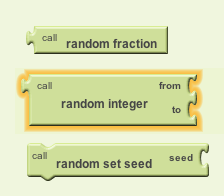
You can find the random functions in the Blocks Editor under the Math menu, where you find:
- random fraction -- returns a random value between 0 and 1
- random integer -- returns a random integer between its from and to arguments, inclusive
- random set seed -- sets the seed for the PRNG
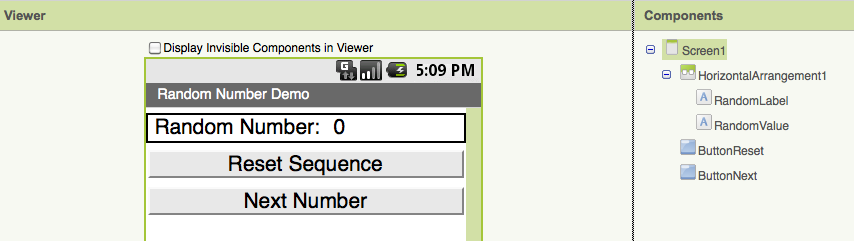
User Interface: Two buttons and two labels
Blocks
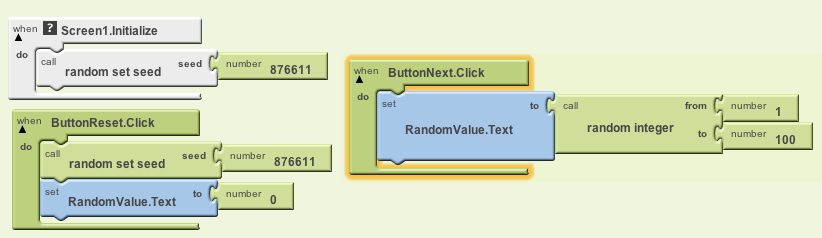
Here's the source code. You can download as a zip file, save it on your computer. Then use MyProjects > More Actions > Upload Source to upload it in App Inventor.
Experiment with the sourcecode. Try:
Changing the value of the seed from 876611 will produce a different sequence of numbers each time.
Observations
Screen.Initialize: This block is where you do any initialization operations that you want to perform when your app starts up. To re-fire this block in Blocks Editor, you need to Connect to Device again.
Setting the PRNG Seed: Being able to generate the same sequence of random numbers is useful when you are developing a game of simulation -- easier to debug your app.
 |
 |
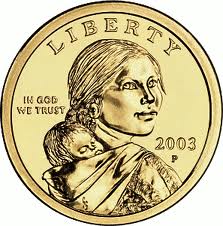
It's user interface will consist of a Button that the user can click to
"flip the coin."
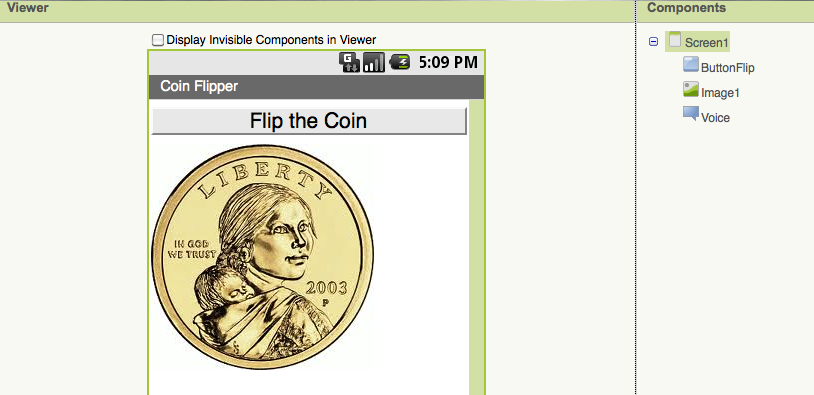
Notice that this app contains a non-visible component named Voice. This is App Inventor's TextToSpeech component, which can be found in the Other stuff drawer. It will allow us to say "Heads" or "Tails" when the coin is flipped.
Our Algorithm: Our algorithm will use an if/else control structure.
When the ButtonFlip is Clicked do:
  Set Coin to either 1 or 2 selected randomly
  If Coin = 1 then-do:
     Say "Heads"
     Display the Heads Image
  else-do:
     Say "Tails"
     Display the Tails Image
Here's how this would be implemented in App Inventor:
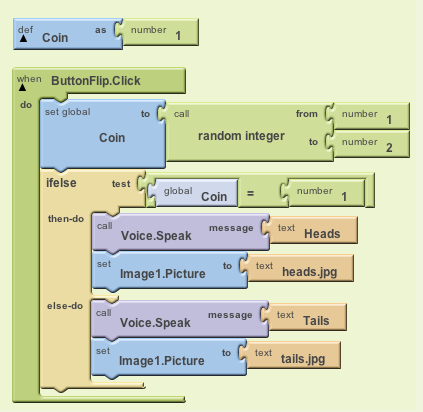
Here's the source code. You can download as a zip file, save it on your computer. Then use MyProjects > More Actions > Upload Source to upload it in App Inventor.
One limitation of Version 1 is that it just toggles the coin between Heads and Tails. It doesn't really simulating tossing the coin, where the coin rotates in the air until it hits the ground.
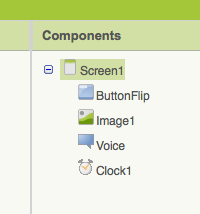
Let's add a Clock component and use it to simulate the flipping of
the coin between heads and tails.
Let's organize our algorithms into procedures. This will allow us to think about the app at a higher level of abstraction -- i.e., at a level that has operations such as FlipTheCoin, ShowTheCoin, and AnnounceResult.
Notice how each of these procedures uses an if/else control structure:

In Pseudocode we would express the algorithms as follows:
# Comment: Flipping the coin is toggling between 1 and 2
To FlipTheCoin:
   If Coin = 1 then-do:
      Set Coin to 2
   else-do
      Set Coin to 1

#Comment: Display either the heads or tails image
To ShowTheCoin:
    If Coin = 1 then-do:
       Set Image.Picture to heads.png
    else-do:
       Set Image.Picture to tails.png

#Comment: Say either "Heads" or "Tails"
To AnnounceResult:
    If Coin = 1 then-do:
       TextToSpeech.Speak "Heads"
    else-do:
       TextToSpeech.Speak "Tails"
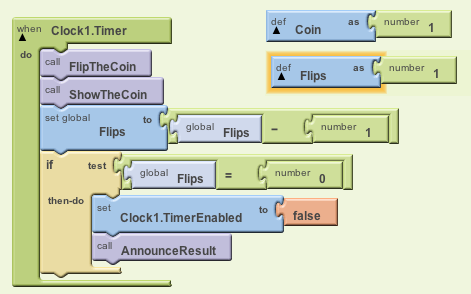
Our simulation of tossing the coin will toggle between heads and tails each time the clock ticks, displaying the coin after each clock tick. But it has to do this a random number of times to simulate a coin flipping over-and-over until it hits the ground.
Data Abstraction: Let's use another global variable named Flips to represent how many times the coin flips over.
Algorithm: Here's our algorithm. Notice how easy it is to grasp at this high level of abstraction. By using procedures we are able to hide some details:
#Comment: Simulate a coin flipping over Flips times:
When Clock.Timer clicks do:
   FlipTheCoin
   ShowTheCoin
   Set Flips to Flips - 1
   if Flips = 0 then-do:
      Set Clock.Enabled to false    # Stop the clock
      AnnounceResult
|
|
Note in the algorithm above that when the Flips = 0 we disable the Clock. Now that we know about loops, it's useful to think about what's going on behind the scenes in the Clock componenet.
The Clock component is using something like the following while loop:
#Comment: Behind-the-scenes algorithm used by the Clock
While Clock.Timer is enabled  do:
   Wait for Clock.TimerInterval milliseconds
   Generate a Clock.Timer event
Recall that Clock.TimerInterval is a property whose value can be set by the app. So this is a loop that will continue to execute until some other part of the app disables the Clock.
To complete this simulation all we need to do is start
(i.e. enable) the Clock when the button is clicked:
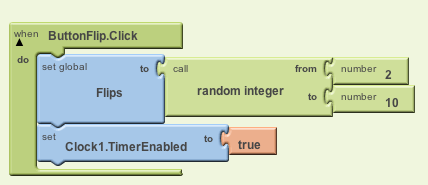
Here's the source code. You can download as a zip file, save it on your computer. Then use MyProjects > More Actions > Upload Source to upload it in App Inventor.
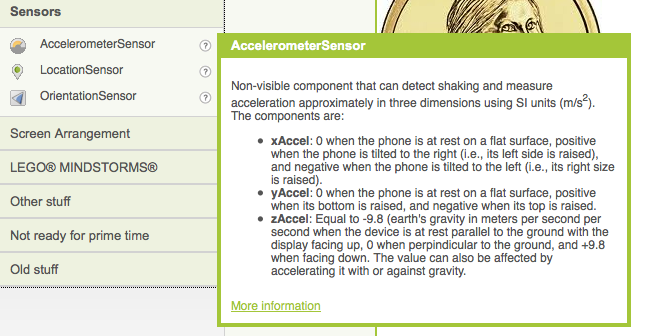
Instead of pressing a button, what if we could "toss the coin" by simply
"flipping the phone". This can easily be done using App Inventor's
AccelerometerSensor.
Instead of tossing the coin when the button is clicked, let's toss it when the Accelerometer is flipped
along its zAxis.
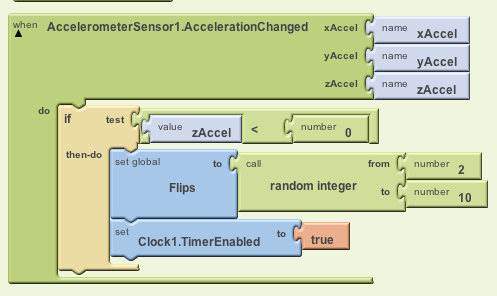
Given the way we have designed our app, you can now just remove the Button from the interface and rely on "flipping the phone" to simulate tossing the coin.
Here's the source code. You can download as a zip file, save it on your computer. Then use MyProjects > More Actions > Upload Source to upload it in App Inventor.
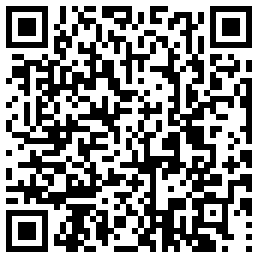
If you just want to download and run the app on your phone, point your Barcode Scanner app (available for free on
the Android Market) to the following QR Code:
If you want to learn how to share your apps, see these instructions.