
In this tutorial we create a simple app and run it on your phone.
Also, if you haven't already done so, you will need to set up your App Inventor environment. See the instructions at http://appinventor.googlelabs.com/learn/
Start a new project in the Designer window and name it JustAButton and change the screen Title to JustAButton.
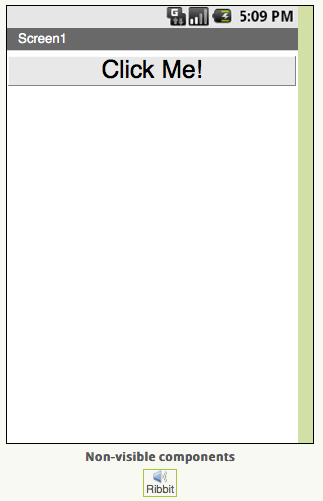
For this app our User Interface will consist of a Button and a Sound. Find the Button component in Palette and drag it onto your Viewer. Use the Rename button to rename the button to ClickMe (no spaces) and set its Text to "Click Me!". Set its FontSize to 30.0 and set its Width to Fill Parent.
Find the Sound component in the Media drawer and drag it onto the Viewer. Rename the Sound to Ribbit. Then download the following sound file, ribbit.wav, save it on your Desktop, and use the downloaded file as the Soure of Ribbit.
At this point your Viewer should look like the screen shot on the right:
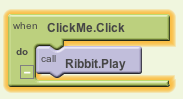
Now we want to write the logic that will control the app. When the ClickMe button is clicked, we want to play the Ribbit sound. This will be simple to do.
Open the Blocks Editor. As it is starting up you will want to select the Connect to Phone option when it is offered. Make sure your phone is connected to the computer via the USB cable before clicking the option. Then wait for Connect to Device button to become enabled and choose Restart App On Device when that button is enabled.
When you app starts on the phone, you can click the button, but nothing will happen.
In the Blocks Editor, select the ClickMe button in the My Blocks palette. And drag the When ClickMe.Click element onto the editor. This element will be invoked whenever the user clicks on ClickMe.
Next, select the Ribbit sound and drag the call Ribbit.Play
element onto the Blocks Editor and insert it into the When ClickMe.Click
element. Your blocks should look this this:
In the Blocks Editor, click the Restart app on device button and your completed app should now be downloaded to the phone. This time when you click on the "Click Me!" button you should hear frog croak.